
Managed Object Browser: The Definitive Guide to VMware Secret Diagnostic Tool
In the complex world of VMware virtualization, the standard vSphere Client sometimes falls short. When tasks freeze or automation scripts require specific MoRef IDs, experienced administrators turn to the Managed Object Browser (MOB). As a built-in, web-based gateway for ESXi and vCenter, the MOB provides a raw, unfiltered view of the vSphere API.
It allows you to navigate the live object hierarchy, verify hidden properties, and invoke methods directly. While it appears legacy, it is a critical “break-glass” utility for deep-level diagnostics. This guide explores how to safely unlock and master the MOB for peak infrastructure health.
What is the Managed Object Browser?
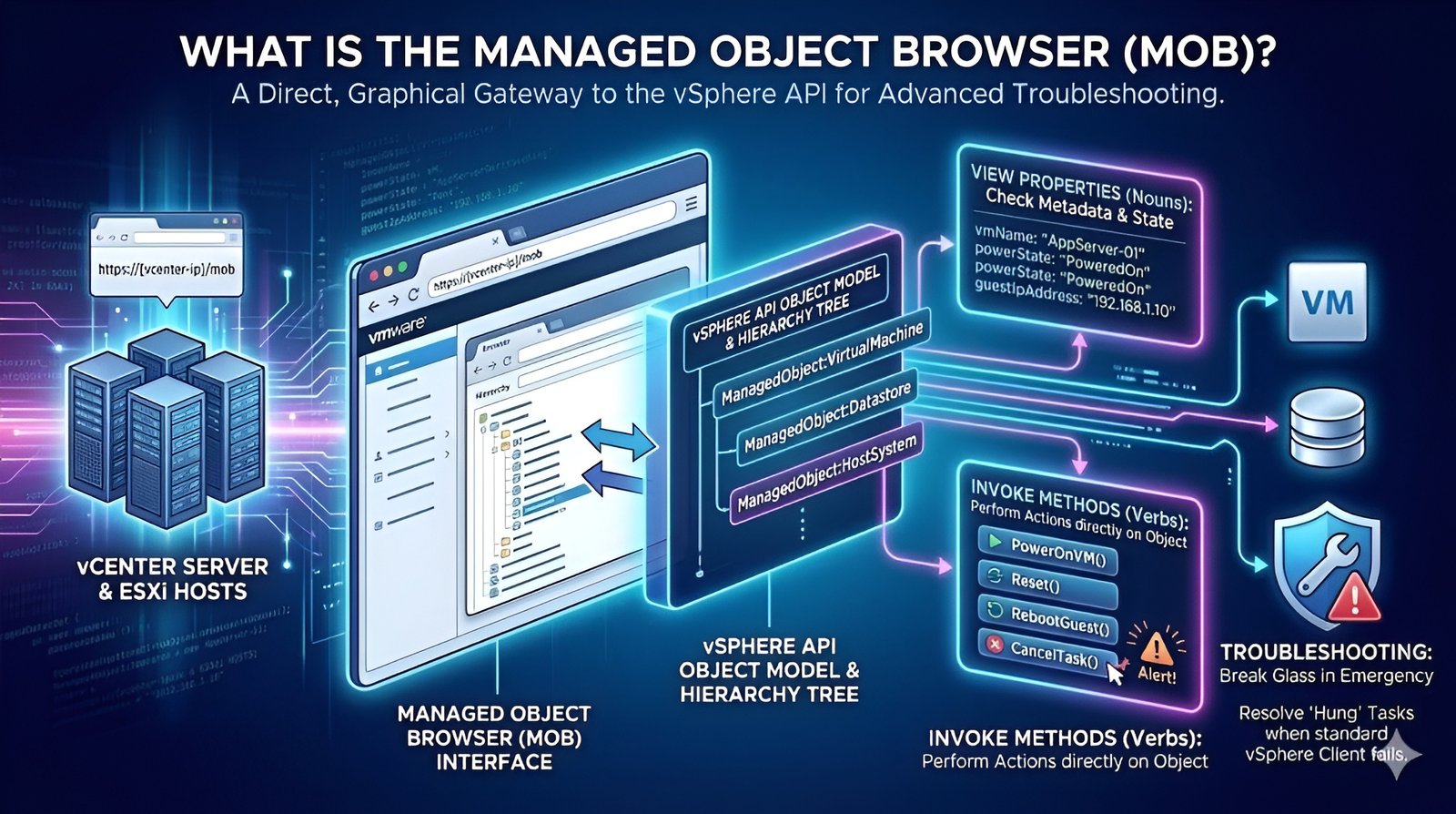
In the hyper-connected data centers of 2026, where 6G speeds and AI-managed clusters are the norm, the Managed Object Browser (MOB) remains the ultimate “under-the-hood” interface for VMware administrators. Essentially, the MOB is a web-based server application built directly into ESXi hosts and vCenter Server systems that provides a graphical representation of the vSphere API.
While the standard vSphere Client offers a polished, user-friendly experience, it often masks the raw complexity of the underlying objects. The MOB unmasks this reality, allowing you to see exactly how VMware defines every virtual machine, datastore, and host.
It acts as a live, interactive map of your virtual environment’s object model. By accessing the MOB, you are not just looking at a dashboard; you are interacting directly with the server-side objects that govern your infrastructure’s behavior and state.
Why the Managed Object Browser is Vital for 2026 Virtualization Experts
Virtualization has evolved significantly, but the need for granular control remains constant. The Managed Object Browser is vital because the standard graphical user interface (GUI) occasionally fails to display specific metadata or provide the “force-stop” options required during critical failures.
For example, if a vCenter task is “hung” at 99% and the “Cancel” button is greyed out in the client, the MOB is your only escape hatch. Furthermore, as automation becomes the primary way we manage 2026-scale infrastructures, developers and automation engineers use the MOB to identify correct API paths for PowerCLI or Python scripts.
It serves as a “break-glass-in-case-of-emergency” utility that allows for surgical precision when the standard tools reach their operational limits, ensuring that your long-term infrastructure health remains uncompromised by minor software glitches.
Navigating the MOB Architecture: Properties vs. Methods Explained
To master the Managed Object Browser, one must understand its two fundamental pillars: Properties and Methods. Properties are the descriptive data points associated with an object think of them as the “nouns.” For a virtual machine object, properties include its name, power state, IP address, and hardware configuration.
These allow you to verify the exact status of an object as the API sees it. Methods, on the other hand, are the “verbs” the actions you can perform on that object. Through the MOB, you can invoke methods like PowerOnVM, RebootGuest, or Destroy. This capability is both incredibly powerful and potentially dangerous, as it bypasses the safety confirmations found in the vSphere Client. Understanding this distinction is the key to using the MOB for advanced troubleshooting without accidentally causing downtime.
Security First: Why the MOB is Disabled by Default and How to Enable It
Because the Managed Object Browser provides such raw access to the vSphere API, it presents a significant security risk if left exposed. In modern versions of vSphere (6.x, 7.x, 8.x, and beyond into 2026), the MOB is disabled by default. An unauthorized user with access to the MOB could theoretically delete entire clusters or exfiltrate sensitive configuration data. Therefore, the first step in any troubleshooting mission is often enabling the service.
For vCenter, this involves navigating to the Advanced Settings of the vCenter Server and toggling the Config.HostAgent.plugins.solo.enableMob value to true. This controlled access ensures that the tool is only active when an administrator specifically requires it for a diagnostic task, maintaining a high-security posture for the overall virtual environment and adhering to modern hardening guidelines.
How to Access the Managed Object Browser on vCenter Server
Once the service is enabled, accessing the Managed Object Browser on a vCenter Server is straightforward but requires specific URL syntax. Typically, you navigate to https://[vcenter-fqdn-or-ip]/mob. Upon entering this URL, you will be prompted for your administrative credentials. It is important to note that the MOB uses the same permission sets as the vSphere Client; if your account doesn’t have permissions to view or modify an object, the MOB will enforce those restrictions.
Once logged in, you start at the “ServiceContent” level, which is the root of the entire vCenter hierarchy. From here, you can drill down into folders, datacenters, and clusters. This top-down navigation is essential for locating specific managed objects in large-scale 2026 environments where thousands of VMs might be active across multiple geographic regions.
Accessing the MOB on ESXi Hosts: A Step-by-Step Walkthrough
There are times when vCenter itself is offline, and you must go directly to the source: the ESXi host. Accessing the Managed Object Browser on an ESXi host follows a similar logic but often requires a different enabling method via the ESXi Shell or SSH. By running the command vim-cmd proxysvc/add_endpoint /mob http://localhost:8080/mob, you can open the portal on the specific host.
This is particularly useful for troubleshooting “orphaned” virtual machines or host-specific network glitches that vCenter cannot see. When accessing the MOB at the host level (e.g., https://[esxi-ip]/mob), you are viewing only the objects managed by that specific host agent (hostd). This granular focus is invaluable for isolating hardware-level issues from software-level management errors in a complex, multi-layered cloud infrastructure.
Finding MoRef IDs: The Secret Weapon for Automation Engineers
One of the most common reasons for using the Managed Object Browser in 2026 is to retrieve Managed Object Reference IDs, commonly known as MoRef IDs. These are unique, internal identifiers used by the vSphere API to track objects (e.g., vm-42 or datastore-10). While the vSphere Client shows you the “friendly” name of a VM, automation scripts often require the MoRef ID to ensure they are targeting the correct object, especially if multiple VMs share the same name.
By navigating to a VM object in the MOB, the MoRef ID is clearly displayed in the URL and the page header. For anyone writing PowerCLI scripts or building AI-driven automation workflows, the MOB is the definitive source of truth for these identifiers, preventing costly automation errors.
Troubleshooting Frozen Tasks: Using Methods to Clear vCenter Glitches
Every administrator has experienced the “Ghost Task” a migration or snapshot that is stuck indefinitely, preventing other actions on a VM. The Managed Object Browser is the primary tool for resolving this without rebooting the entire vCenter Server. By navigating to the TaskManager and then the RecentTask list, you can find the specific task object that is causing the blockage.
Once you have located the managed object for that task, you can invoke the CancelTask method. This sends a direct command to the vSphere API to terminate the thread. This surgical intervention clears the queue immediately, allowing operations to resume. This ability to “unstick” the management plane is why the MOB remains a foundational skill for high-level VMware engineers.
Verifying SSL Certificates and Thumbprints through the API View
In 2026, security certificate management is more automated than ever, but when a host fails to join a cluster due to a “thumbprint mismatch,” the Managed Object Browser is where you go to verify the facts. By inspecting the HostSystem properties, you can view the exact SSL thumbprint the host is presenting to the API. You can compare this against what vCenter has stored in its database.
This transparency is vital for fixing trust issues between management components. Whether you are dealing with custom CA-signed certificates or standard VMware-issued ones, the MOB allows you to bypass the UI’s simplified “Security” tab and see the raw certificate data, ensuring that your encrypted communication channels remain valid and secure across your long-term infrastructure.
Managed Object Browser for Developers: Exploring the vSphere Object Model
For developers building custom integrations or “Data as a Service” (Dados AS) platforms that interact with VMware, the Managed Object Browser is an interactive documentation tool. Instead of just reading the API reference docs, developers can browse the live object model to see how different objects are linked. You can see how a VirtualMachine object links to a Network object through its VirtualDevice array.
This “live-walking” of the object tree is the fastest way to understand the complex dependencies within vSphere. It allows developers to prototype their API calls and see exactly what data will be returned in a real-world environment. In the age of rapid application development, the MOB provides the immediate feedback loop needed to build robust, bug-free cloud management tools.
Advanced Configuration: Modifying Hidden Attributes via the MOB
There are certain advanced configuration parameters in VMware that are not exposed in any GUI. These “hidden” attributes often control low-level behaviors of the vCenter service (vpxd) or the host agent (hostd). Using the Managed Object Browser, an administrator can navigate to the OptionManager and invoke the UpdateOptions method to modify these values.
While this should only be done under the guidance of VMware Global Support, it is a powerful way to apply “hotfixes” or tune system performance for specific 2026 workloads, such as high-frequency trading or large-scale AI model training. The MOB provides the interface for these deep-level system tweaks, ensuring that your environment can be optimized for peak performance regardless of what the standard menus offer.
Disabling the Managed Object Browser: Hardening Your Infrastructure
After the troubleshooting is complete and the “Ghost Task” is gone, the final and most important step is disabling the Managed Object Browser. Hardening your infrastructure is a continuous process in 2026, and leaving the MOB enabled is like leaving the keys in the ignition of a supercar. You must return to the vCenter Advanced Settings or the ESXi configuration and set the enableMob value back to false.
This “close the door behind you” policy is a core tenant of modern cybersecurity. It ensures that even if an attacker gains a foothold in your management network, they cannot use the MOB to gain surgical control over your virtual assets. Always remember: the MOB is a tool for the moment, not a permanent fixture of your administrative workflow.
Understanding “Dados AS” Integration with the MOB
As organizations move toward “Dados AS” (Data as a Service) models, the data provided by the Managed Object Browser becomes a valuable feed for broader data lakes. Many 2026 enterprises use automated crawlers to pull property data from the MOB/API to track resource utilization and billing in real-time.
By understanding the structure of the MOB, data engineers can build more efficient pipelines that extract exactly the metrics they need such as CPU cycles, storage latency, or memory ballooning without overloading the vCenter API. This intersection of infrastructure management and data science is where the future of “Smart Data Centers” lies. The MOB provides the standardized, structured view of the world that makes this level of data integration possible across global-scale virtual ecosystems.
Conclusion
Managed Object Browser is far more than a “relic from the early 2000s”; it is the definitive interface for anyone serious about VMware administration in 2026. It provides the transparency, control, and diagnostic power required to manage modern, complex virtual environments. By understanding how to navigate its hierarchy, invoke its methods, and most importantly secure it when not in use, you ensure the long-term stability of your infrastructure.
Whether you are clearing a frozen task, finding a MoRef ID for a script, or exploring the API for a new automation project, the MOB is your most reliable ally. Mastering this tool separates the standard administrator from the true virtualization expert, providing the “hidden” knowledge needed to keep the digital world running smoothly.
FAQs
The Managed Object Browser (MOB) is a web-based diagnostic tool built into vCenter and ESXi. It provides a direct, graphical view of the vSphere API, allowing administrators to see properties and invoke methods on virtual objects like VMs and datastores. It is primarily used for advanced troubleshooting when the standard vSphere Client reaches its limits.
No, leaving the Managed Object Browser enabled is a significant security risk. Because it allows direct API interaction and configuration changes, it could be exploited by attackers to manipulate your virtual environment. Modern security standards dictate that the MOB should only be enabled during active troubleshooting and disabled immediately afterward to harden the system.
To enable the Managed Object Browser on modern vCenter versions, log into the vSphere Client, go to “vCenter Server” > “Configure” > “Advanced Settings.” Search for the key Config.HostAgent.plugins.solo.enableMob and change its value to “True.” Once the value is saved, the portal will be accessible at https://[vcenter-ip]/mob using your admin credentials.
If a task is stuck, navigate to the Managed Object Browser, go to the TaskManager, and then the RecentTask list. Identify the MoRef ID of the frozen task. Click on the task object and find the “Methods” section. Click on the CancelTask link and then “Invoke Method.” This will force the vSphere API to terminate the hung process and clear the UI.
A MoRef ID (Managed Object Reference ID) is a unique internal identifier (like vm-123) used by the vSphere API to track objects. The Managed Object Browser is the most reliable place to find these IDs. They are essential for automation scripts (PowerCLI/Python) to ensure the script targets the exact correct object in a large-scale environment with duplicate names.
Yes, the Managed Object Browser allows you to modify VM configurations by invoking specific methods like ReconfigureVM. However, this is a manual process that requires knowledge of the API’s data structures. It is generally used for “hidden” settings that aren’t available in the standard GUI or when the GUI is experiencing a bug that prevents changes.
If you have enabled the Managed Object Browser in Advanced Settings but still can’t access it, check your firewall and browser settings. The MOB requires an encrypted connection (HTTPS). Also, ensure that you are using the correct URL format (/mob at the end). In some high-security environments, a secondary firewall may block direct access to host or vCenter API ports.
Yes, the Managed Object Browser is available on standalone ESXi hosts. Accessing it directly on the host is useful if vCenter is down. To enable it on a host, you may need to use the ESXi Shell or SSH to add the endpoint to the proxy service. Once enabled, it provides a view of only the virtual machines and resources managed by that specific host.
You may also read: Delta Flight DL275 Japan Diversion LAX: The $2.3M AI & Safety Case Study|
Managed Equipment Services in Healthcare: The Ultimate Guide Strategy
For More Information, visit imagefaps